How to Get Your Digital Life Organised: A Practical Reset for Home and Work
Digital clutter builds quietly — files on the desktop, screenshots on your phone, documents scattered across cloud services. Here is a practical reset you can work through without trying to organise everything at once.
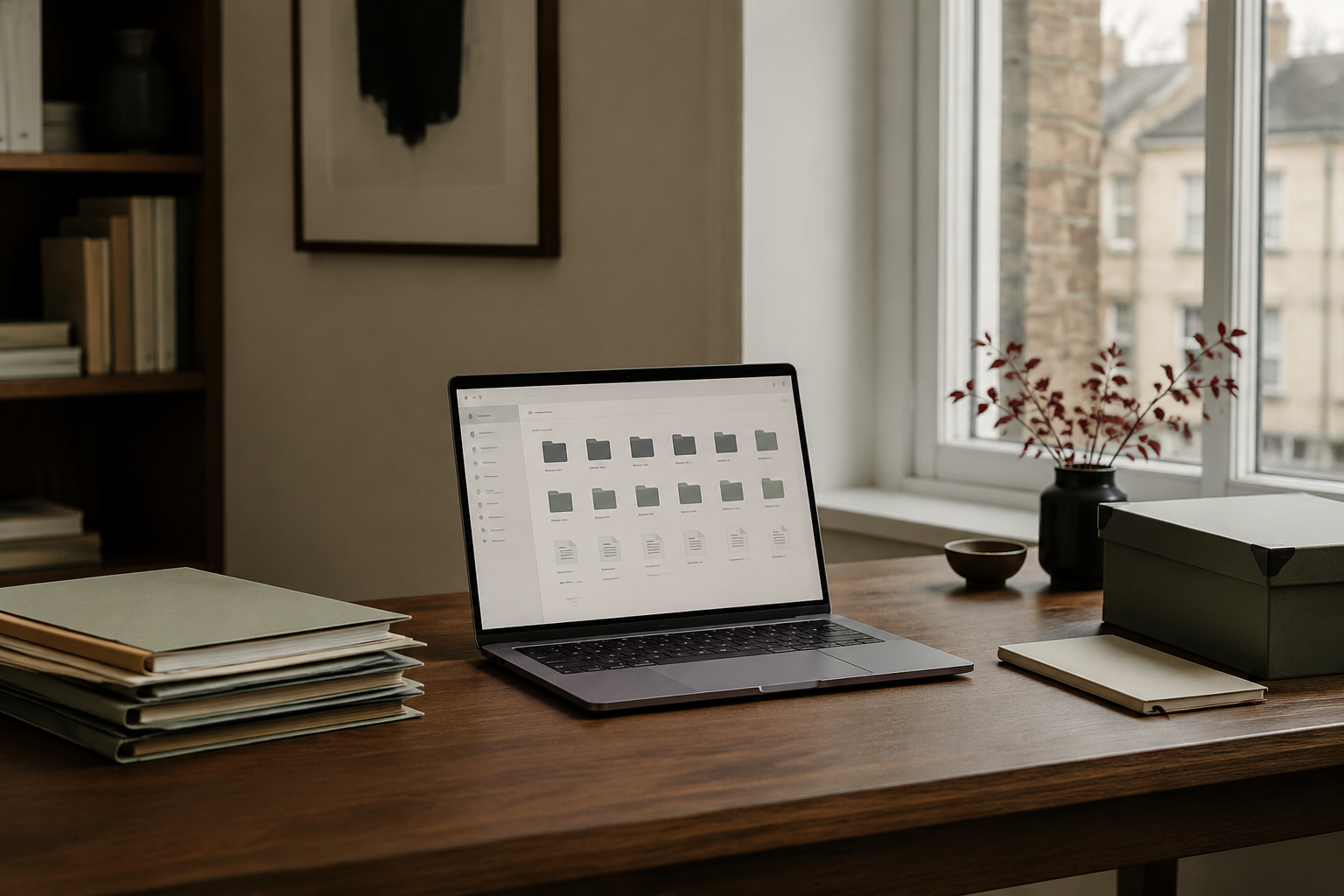
Digital clutter has a habit of building quietly.
A few files saved to the desktop. Hundreds of screenshots on your phone. Documents scattered between Google Drive, iCloud and your computer. An inbox you keep meaning to deal with. Apps you downloaded once and never opened again.
Then there is work.
Client documents, invoices, notes, AI tools, calendars, passwords, downloads and folders all compete for attention.
Eventually, finding something takes longer than it should.
The solution isn't necessarily another productivity app.
Often, you simply need a better system for what you already have.
Here is a practical way to reset your digital life — without trying to organise everything in one day.
1. Start with the places where digital clutter collects
Before creating folders or downloading an organisation tool, work out where your digital clutter actually lives.
Common places include:
- your computer desktop
- Downloads
- Documents
- Google Drive
- iCloud Drive
- your phone
- your email inbox
- browser bookmarks and tabs
- notes apps
- work or business folders
Don't start reorganising yet.
Simply identify the places that have become difficult to manage.
You may discover that most of the problem comes from only two or three locations.
2. Sort out your Downloads folder
Downloads is one of the easiest places to begin because much of what's there probably doesn't need to stay.
Open the folder and work through it.
Delete installers you no longer need, duplicate PDFs, old attachments, temporary images and documents you have already filed elsewhere.
Then move anything worth keeping into its proper home.
This isn't about achieving a perfectly empty Downloads folder.
The aim is to stop using it as permanent storage.
3. Give your important files a clear home
A good filing system should answer one question quickly:
Where would I look for this?
You don't need dozens of complicated folders.
For personal files, you might use broad categories such as:
- Home
- Money
- Travel
- Family
- Personal
- Photos
For a small business, your top-level folders might look more like:
- Admin
- Clients
- Finance
- Marketing
- Products
- Templates
Create enough structure to make things easy to find, but not so much that filing a document becomes a project of its own.
4. Decide which cloud service is your main one
One common cause of digital confusion is having files spread across several cloud services.
Perhaps some documents are in Google Drive, others in iCloud, a few in OneDrive and more stored only on your computer.
You don't necessarily have to stop using the other services.
But it helps to decide where your main working files belong.
Once you have a default location, decisions become much easier.
Instead of wondering where to save something, you already know.
(If you are new to the cloud or unsure how remote file storage works across devices, see our simple guide to what cloud storage is and how it works.)
5. Use file names that will make sense later
Names such as:
Document1.pdf
or
FINAL-final-new-v2.docx
aren't particularly helpful six months later.
Give important documents descriptive names.
For example:
Aurelle Digital-Digital-Content-Plan-September-2026.docx
or:
Home-Insurance-Renewal-2026.pdf
You don't need an elaborate naming convention for every file you own.
Use it where being able to search and identify something later matters.
6. Reset your phone
Your phone is probably one of your busiest digital spaces.
Spend 15–20 minutes looking at:
- apps you no longer use
- unnecessary screenshots
- duplicate photos
- downloaded files
- old browser tabs
- notification settings
- apps taking up significant storage
You don't have to completely reorganise your phone.
Removing even a small amount of noise can make it noticeably easier to use.
7. Reduce unnecessary notifications
Not every app deserves immediate access to your attention.
Look through your notification settings and ask:
Do I actually need to know about this immediately?
Messages from family might be important.
A shopping app announcing a promotion probably isn't.
Turning off unnecessary notifications doesn't mean you can't use the app.
It simply means you decide when to check it.
8. Check your digital security
Organisation isn't only about neat folders.
A digital reset is also a good opportunity to check some basic security.
Review whether:
- important accounts use strong, unique passwords
- two-factor authentication is enabled where appropriate
- recovery email addresses and phone numbers are current
- your devices are receiving security updates
- important files are backed up
If you've been postponing these jobs, choose one or two rather than trying to overhaul everything at once.
9. Simplify the technology you use for work or business
If you run a business, freelance or manage projects outside your main job, it's particularly easy to accumulate tools.
You might have one app for tasks, another for notes, another for AI, another for files and several more you've forgotten you're paying for.
Before adding another tool, ask:
What problem am I actually trying to solve?
Then ask:
Can something I already use solve it?
The best digital system isn't necessarily the one with the most features.
It's the one you can maintain.
10. Give AI specific jobs
AI can become another source of digital clutter if you use it without a clear purpose.
Instead, decide what you actually want it to help with.
For example, you might use AI to:
- create a first draft
- summarise long information
- improve an email
- organise rough notes
- brainstorm content ideas
- turn information into a checklist
- explain something you don't understand
You don't need AI involved in everything.
Use it where it removes friction or saves useful time.
11. Create a small weekly digital reset
The easiest digital organisation system is one you don't have to rebuild every six months.
Try setting aside 15–20 minutes once a week.
During that time you could:
- Clear Downloads.
- File loose documents.
- Delete unnecessary screenshots.
- Close old browser tabs.
- Check your desktop.
- Review your upcoming week.
- Back up anything important.
You won't necessarily need to complete every task every week.
The point is to prevent small amounts of digital clutter becoming overwhelming again.
You don't need to organise everything
A digital reset isn't about creating a perfectly organised life.
It's about removing the little pieces of friction that make technology harder to use than it needs to be.
Start with the digital space that annoys you most.
Fix that.
Then move on to the next one.
Twenty minutes spent organising the right thing can be more useful than spending hours researching the perfect productivity system.
And once the basics are working, technology starts doing what it was supposed to do in the first place:
making everyday life and work easier.
Make your digital life easier
Aurelle Digital creates practical, plain-English guides for navigating technology at home, at work and in your business.
From AI and digital organisation to Apple, Google, productivity, files and security, the focus is simple: helping you solve real digital problems without unnecessary jargon.
Explore the Aurelle Digital library: https://aurelledigital.com/
Made simple. Not dumbed down.
Start with the digital space that annoys you most, fix that, then move on. Twenty minutes on the right thing beats hours researching the perfect system.
This article introduces ideas explored fully in The Digital Life Reset.
Make technology easier to manage.
Get The Aurelle Letter every fortnight — practical advice on AI, small-business systems and everyday technology, without the noise.
Need help putting this into practice?
Aurelle Digital can research, write, optimise and publish search-focused content for your business.
Still stuck? Ask Aurelle.
Get personalised, plain-English help with one defined technology question without needing to book a call. We review your issue and send tailored guidance within 2 working days.
Related articles
A practical system for files that are already messy — without the exhausting 'sort everything at once' approach that never lasts.
A manageable digital reset you can do in short sessions — Downloads, Desktop, apps, notifications, email, photos, subscriptions — without clearing your whole weekend.
If you run a small business, you probably use cloud storage already. Here is what it is, how it works, how to compare Google Drive, OneDrive, Dropbox and iCloud, and how to set up a clean filing structure.